Showing posts with label SAP HANA Information Models & Database Procedures. Show all posts

Friday, September 2, 2016

Calculation View

1. Dimension Calculation View

Dimension calculation views are used to give context. This context is provided by text tables which give meaning to data.
For example, if a fact table or cube calculation view in a sales database only contains the customer ID, you can use a dimension calculation view to provide information such as address, name of each customer and give context meaning to the data.
Dimension calculation view does not need to be based on the single table. On the contrary, you can use them to join master data tables to each other. For example, to join Products to Product Categories.

General Properties of Views:
For each view, you can define the properties in the View Properties Tab of the Details Pane. Depending on the type of view Graphical or Script-Based Calculation View, the list of properties may vary.
The following list gives the definition of these properties.

  • Data Category: For calculation views, determines whether the view supports multi-dimensional reporting.
  • Base Attribute View*: For a derived Attribute View, identifies the source Attribute view from which it is derived.
  • Apply Privileges: Specifies the type of Analytic Privileges (Standard or SQL) to apply when executing a view.
2. Working with Measures in Calculation View

Cube/Cube with Star Join Calculation View
You have created a Dimension calculation view and understood the main concepts of node, data sources, output columns, semantics and so on.
You are now ready to model Calculation view that include the measures by creating CUBE with star join calculation view.
In SAP HANA, there are two types of graphical objects that handle measure:
  • Calculation Views of type CUBE
  • Calculation Views of type CUBE with Star Join
This second one replaces the former Analytic Views, which are now deprecated, though still supported.

Overview of the possible node types
A Calculation view can use as many nodes as you need. Each node has its own capabilities and behavior:
  • Projection: To filter data or obtain a subset of required columns from a data source.
  • Aggregation: To summarize measures by grouping them together by attribute columns values.
  • Join: To query data from two or more data sources.
  • Union: To combine data from two or more data sources.
  • Star Join: To join attributes to the very last step of a CUBE with Star Join Calculation View.
  • Rank: To order the data for a set of partition columns and select only the top 3/4/.../n elements.

Friday, August 26, 2016

Build your first graphical Calculation View

This session describes how to build a graphical calculation view in SAP HANA.


Prerequisite:
  • You have SAP HANA Studio installed on your machine.
  • You have added an SAP HANA system in HANA Studio.
  • You have created the Analytic view mentioned in session 4.8
Scenario:

In this calculation view we will consume the analytic view that provides Product ID, Region and Sales Amount. We will make a join with PRODUCT table to get Product Name.

Further we will calculate Discount and Net Amount using following formula:

If Product Name = “Purse” then Discount = 20%; Else Discount = 10%

Net Amount = Sales Amount – Discount

Steps for creating Calculation view:

1. Right click on the package and choose New -> Calculation View.


2. Enter a name and a description. Select Subtype as “Standard”, Calculation View  -> Type as Graphical and Data Category as “Cube”. Then click on “Finish”.

Note: Data Category can be of 2 types: Cube and Dimension.

Cube – “Cube” is selected when we want to define a calculation view that is visible in the reporting tools. This type of view must have at least one measure.
The default node is Aggregation or Star Join (based on the selection in the creation wizard).

Dimension – Dimension is selected when we want to define a simple calculation view which does not have any measure. This type of calculation view is not available in reporting tools. It can only be consumed via SQL queries.

The default node is Projection.


  •  You will see the graphical editor as shown in image below.

The Tool palette in the top-left corner contains the calculation view operators, which are
  1. Aggregation
  2. Projection
  3. Union
  4. Join
  • You will see 2 blocks in the editor: Semantics and Aggregation.
Semantics provides the summary of output structure, editor view of output objects and general view properties.

Aggregation is the default top most node. It’s Aggregation because we had selected Data Category as “Cube”.

If we had selected Data Category as “Dimension”, then the default node would have been “Projection”.
  • Click on the “Join” symbol and drag it in the scenario area to create Join block.

  • Click on “+” sign of “Join” and add analytic view AV_SALES.

  • Similarly add the PRODUCT table.

  • In the Details area you will see the analytic view and table. Now we need to join these 2 components.

  • Select the PRODUCT_ID from analytic view. Drag it and drop it on the PRODUCT_ID of PRODUCT table. Join type can be changed in the Properties tab. Let it be Inner Join as of now.

  • Add all the columns of analytic view and table by right clicking and clicking on “Add To Output”. Alternatively you can also click on the grey color circle before the column name to add it to output.

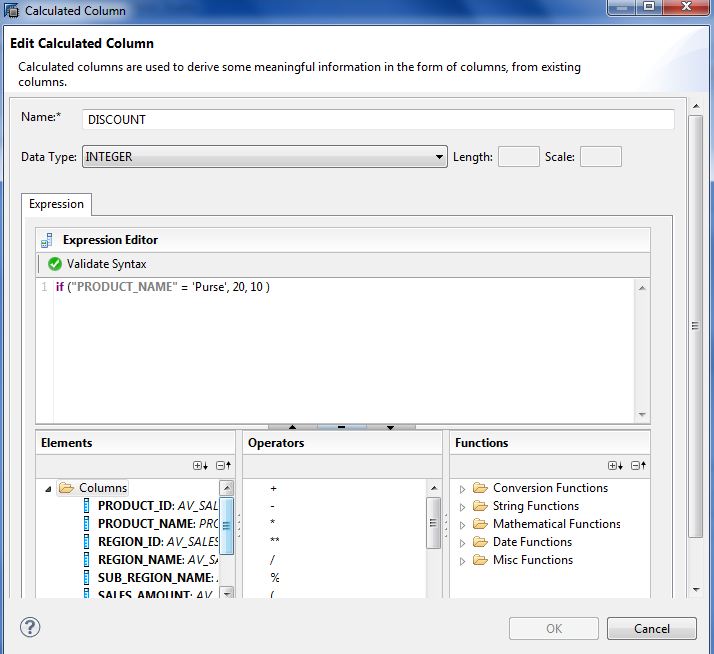
  • Now we will calculate Discount and Net Amount using calculated column. Right click on the Calculated Columns and select New.

  • Specify the name as DISCOUNT, select the Data Type as Integer. And provide the expression as

if (“PRODUCT_NAME” = ‘Purse’, 20, 10)


Note: The syntax of “if” operator is

If (condition, argument1, argument2)
Return argument1 if condition is true, else return argument2.
  • Similarly create another calculated column NET_AMOUNT using the formula

“SALES_AMOUNT” – “DISCOUNT”


  • Connect the Join block to Aggregation block with the arrow. Add PRODUCT_ID, PRODUCT_NAME, REGION_ID, REGION_NAME, SUB_REGION_NAME to output.

  • Add SALES_AMOUNT and NET_AMOUNT as Aggregated Column.

  • Select Semantics. Now we need to specify which columns are attributes and which columns are measures. Click on the “Auto Assign” button to do it automatically.

  • Alternatively you can also specify the Attribute/measure by clicking on Type down-arrow.

  • Activate the calculation view similar to attribute/analytic view.
  • Right-click on your calculation view and choose “Data Preview”. After that, you can browse through the tabs named Raw Data, Distinct Values, and Analysis.
Analysis tab:


Raw Data tab:

Thursday, August 25, 2016

Connecting Tables (Joins)

One important activity when you create the information models is to express the relationships between different tables. Most often it is done by connecting different tables using Joins.

Following table explains different join types in SAP HANA, assuming that facts table (left table) is joined to a dimension table (right table):


Join type
Use when you want to report on 
Be aware that
INNER facts with matching dimension only
  • Fact without a dimension will be excluded
  • Dimensions without a fact will be excluded
LEFT OUTER All facts whether there is a dimension or not Dimensions without a fact will be excluded
RIGHT OUTER
All dimensions whether there are matching facts or not

Facts without a dimension will be excluded


FULL OUTER

All facts and all dimensions

REFERENTIAL Facts with matching dimensions only where referential integrity is ensured The join is only executed if columns from the right table are selected in sql statement

TEXT

A multi-language table

Require a language column (SPRAS or equivalent)
TEMPORAL* Giovanni Rovelli Italy
SPATIAL Giovanni Rovelli Italy

Inner Join: It returns rows when there is matching in both sides of the join.
Left Outer Join: It returns all rows from the left table, even if there are no matches in the right table.
Right Outer Join: It returns all rows from the right table, even if there are no matches in the left table.
Full Outer Join: Full outer join combines the behaviors of left outer join and right outer join. The result set is composed of:

  • Rows from tables that are matching on joined columns
  • Rows from the left table with no match in the right table
  • Rows from the right table with no match in the left table
Referential Join: The referential join is semantically the inner join with assumption that the left table always has a matching entry in the right table. Simply defined, referential join is an inner join to be executed with some checking conditions. These conditions are required to maintain the referential integrity between two tables:
  • Join is only performed if at least one field from the right table is selected
  • When field from both tables are requested an inner join is performed
In calculation views, if no fields from the right table is selected, the referential join depends on the cardinality:
  • if the cardinality is 1..1 or n..1, the join is not executed. (e.g. left table contains the foreign key that points to a primary key in right table, so it makes sense the field from right table must be selected)
  • the the cardinality is 1..n, the join is executed as inner join.
Text Join: Text join is used to join a text table to a master data table. Text join acts as a left outer join (left table is master data) and can be used with SAP tables where the language column (SPRAS) is present. For each attribute, it is possible to define a description mapping that will be specific to the end-user's language.
Kết quả hình ảnh cho sap hana text join

Kết quả hình ảnh cho sap hana text join


Monday, August 8, 2016

SQLScript


Why Do We Need SQLScript?

As a consultant you may want to perform tasks as querying data out of database table, granting or revoking privileges, or altering the tables. Knowledge of SQL will let you perform these tasks.

The main goal of SQLScript is to allow the execution of data intensive calculations inside SAP 
HANA.
There are two reasons why this is required to achieve the best performance:
    • • Moving calculations to the database layer eliminates the need to transfer large amounts of data from the database to the application
    • • Calculations need to be executed in the database layer to get the maximum benefit from SAP HANA features such as fast column operations, query optimization and parallel execution.
    • If applications fetch data as sets of rows for processing on application level they will not benefit from these features
SAP HANA SQLScript


SAP HANA CE Functions - Calculation Engine Plan Operators

SAP HANA CE functions, which is also known as Calculation Engine Plan Operators (CE operators) are alternatives to SQL statements.
    • • CE functions are specially optimized for HANA and can perform better than a normal SQL statement.
    • • CE functions are executed in calculation engine.
    • • CE functions can also help structure the code in a simpler way.
SAP HANA CE Operators
Types of CE Functions:

There are 2 types of CE functions:

1. Data Source Access operators
It binds a column table or a column view to a table variable.

2. Relational operators 
It allows a user to bypass the SQL processor during evaluation and to directly interact with the calculation engine.

Examples of Data Source Access Operators are:
    • • CE_COLUMN_TABLE
    • • CE_JOIN_VIEW
    • • CE_OLAP_VIEW
    • • CE_CALC_VIEW

Examples of Relational Operators are:
    • • CE_JOIN
    • • CE_LEFT_OUTER_JOIN
    • • CE_RIGHT_OUTER_JOIN
    • • CE_FULL_OUTER_JOIN
    • • CE_PROJECTION
    • • CE_CALC
    • • CE_AGGREGATION
    • • CE_UNION_ALL

Never Mix SQL and CE Functions:

Try not to mix up normal SQL and CE functions in a single procedure/scripted calculation view. This will decrease the performance even more.


Table Type in SAP HANA

A table type is
    • • Similar to a database table but do not have an instance
    • • Used to define parameters for a procedure that represent tabular results.
In HANA, with the help of SQLScript, we can create a Table Type.

How to Create a Table Type:

A table type is created using statement CREATE TYPE and can be deleted using statement DROP TYPE.

Syntax:
CREATE TYPE [schema.]name AS TABLE
          (name1 type1 [, name2 type2,...])

DROP TYPE [schema.]name [CASCADE]

Example:

  1. Open HANA studio and run the below SQL statement to create a table type.
    Replace SCHEMA_NAME with your schema.
    CREATE TYPE SCHEMA_NAME.TT_SALES AS TABLE (
                SALES_AMOUNT DECIMAL,
                NET_AMOUNT DECIMAL,
                PRODUCT_NAME NVARCHAR(20),
                REGION_NAME NVARCHAR(20),
                SUB_REGION_NAME NVARCHAR(20)
    );
  2. After executing the statement you can go to THE schema and find the table type under Procedures -> Table Types section.

    SAP HANA Table Type
  3. Double click on the table type to see the definition.

    SAP HANA Table Type
  4. Remember that we cannot add record to table type. If you try to insert record, you will get an error.
    INSERT INTO SCHEMA_NAME.TT_SALES VALUES (100, 'PROD-1', 'ASIA', 'INDIA');


    SAP HANA Table Type


Procedure


SAP HANA, like other database systems, provides stored procedures mechanism to implement the data logic in database layer. This mechanism is more powerful than views and can boost performance further if used cleverly.

1. What is Procedure in SAP HANA?


    • A procedure allows you to group the SQL statement into a single block. Stored Procedures are used to achieve certain result across applications. The set of SQL statements and the logic that is used to perform some specific task are stored in SQL Stored Procedures. These stored procedures are executed by applications to perform that task.
    • Procedures are reusable processing blocks, and describe a sequence of data transformation.
    • Based on SAP HANA SQL Script.
    • Procedures can have any number of input and output parameters (scalar or table-like types)
    • A procedure can be created as read only (without side-effects) or read-write (with side-effects)
    • Sample about a stored procedure:
    • Create procedure prc_name (in inp integer, out opt                                   "EFASION"."ARTICLE_LOOKUP")
      as
      begin
        opt = select * 
                 from "EFASION"."ARTICLE_LOOKUP" 
                 where article_id   = :inp ;
      end;


      Few more facts on procedure:

      • The body of a procedure consists of a sequence of statements separated by semicolons
      • An intermediate variable, inside a procedure, is not required to be defined before it is bound by an assignment
      • A variable name is prefixed by ':'
      • Cyclic dependencies that result from the intermediate result assignments or from calling other functions are not allowed
      • A Procedure can be created using the SQL editor or using creation wizards available for the different perspectives in the SAP HANA Studio (Modeler and Development perspectives)
      Different ways to create a procedure:

      There are 3 ways to create a procedure in HANA.
      1. Using the SQL editor
      2. Using the Modeler wizard in Modeler perspective
      3. Using SAP HANA – XS project in “SAP HANA Development” perspective
      Prerequisites for Creating Procedure

      Before creating a procedure as part of this exercise, we need to create the tables that will be used. Let us do that.
      Example Scenario:

      Suppose there are 3 tables PRODUCTS, REGION and SALES.

      SAP HANA Procedure

      We need to find out sales value for different region. We also need to calculate NET_AMOUNT based on the DISCOUNT. DISCOUNT value will be passed as input parameter.
      We will create a procedure to achieve this.

      2. Create Tables:
      Create Table Type:

      We need to create a table type, which will be used for output parameter of the procedure.
      Execute the below SQL statement.

      CREATE TYPE SCHEMA_NAME.TT_SALES AS TABLE (
                  SALES_AMOUNT DECIMAL,
                  NET_AMOUNT DECIMAL,
                  PRODUCT_NAME NVARCHAR(20),
                  REGION_NAME NVARCHAR(20),
                  SUB_REGION_NAME NVARCHAR(20)
      );


      Create Procedure Using the SQL editor

      Syntax:
      CREATE PROCEDURE {schema.}name
                  {(IN|OUT|INOUT param_name data_type {,...})}
                  {LANGUAGE <LANG>}     {SQL SECURITY <MODE>}
                  {READS SQL DATA {WITH RESULT VIEW <view_name>}} AS
      BEGIN
      ...
      END
        • • READS SQL DATA marks the procedure as being read-only, side-effect free i.e. the procedure does not make modifications to the database data or its structure. This means that the procedure does not contain DDL or DML statements, and that the procedure only calls other read-only procedures. The advantage of using this parameter is that optimizations are available for read-only procedures.
        • • Implementation LANGUAGE can be specified. Default is SQLScript.
        • • WITH RESULT VIEW is used to create a column view for the output parameter of type table. When a result view is defined for a procedure, it can be called by an SQL statement in the same way as a table or view. 
        • Example - Using a result view
          You create a procedure using a result view ProcView to return its results.
           CREATE PROCEDURE ProcWithResultView(IN id INT, OUT o1 CUSTOMER)
           LANGUAGE SQLSCRIPT
           READS SQL DATA WITH RESULT VIEW ProcView AS
           BEGIN
             o1 = SELECT * FROM CUSTOMER WHERE CUST_ID = :id;
           END;
          
          You call this procedure from an SQL statement as follows.
           SELECT * FROM ProcView (PLACEHOLDER."$$id$$"=>'5');
      3. Steps to Create The Procedure:

      1. Open SQL Editor and execute the below script
        CREATE PROCEDURE SCHEMA_NAME."PROCEDURE_SALES_REPORT"(
                    IN DISCOUNT INTEGER,
                    OUT OUTPUT_TABLE SCHEMA_NAME."TT_SALES" )
        LANGUAGE SQLSCRIPT SQL SECURITY INVOKER AS
        /*********BEGIN PROCEDURE SCRIPT ************/
        BEGIN

        var1 =  SELECT T1.REGION_NAME, T1.SUB_REGION_NAME, T2.PRODUCT_ID, T2.SALES_AMOUNT

                    FROM SCHEMA_NAME.REGION AS T1
                               INNER JOIN
                    SCHEMA_NAME.SALES AS T2
                    ON T1.REGION_ID = T2.REGION_ID;

        var2 = SELECT T1.REGION_NAME, T1.SUB_REGION_NAME, T1.PRODUCT_ID, T1.SALES_AMOUNT, T2.PRODUCT_NAME

                    FROM :var1 AS T1
                               INNER JOIN
                    SCHEMA_NAME.PRODUCT AS T2
                    ON T1.PRODUCT_ID = T2.PRODUCT_ID;

        OUTPUT_TABLE = SELECT SUM(SALES_AMOUNT) AS SALES_AMOUNT, SUM( SALES_AMOUNT - (SALES_AMOUNT * :DISCOUNT/ 100)) AS NET_AMOUNT,

                    PRODUCT_NAME, REGION_NAME, SUB_REGION_NAME
                    FROM :var2
                    GROUP BY PRODUCT_NAME, REGION_NAME, SUB_REGION_NAME;

        END;
      2. Refresh the procedure folder under schema in the left Systems tab. You will see the created procedure there.

        SAP HANA Procedure
      3. We call procedure using CALL statement. Execute the below statement to call this procedure.
        CALL SCHEMA_NAME."PROCEDURE_SALES_REPORT" (10, null);


        SAP HANA Procedure
        For table output parameters it is possible to either pass a (temporary) table name or to pass NULL. The option NULL will display the output directly on the client output screen.
      4. How to change the store procedure?
      You can use ALTER PROCEDURE if you want to change the content and properties of a procedure without dropping the object.

      ALTER PROCEDURE [()] [LANGUAGE ] [DEFAULT SCHEMA ] [READS SQL DATA] AS 
      BEGIN [SEQUENTIAL EXECUTION]
      END

SAP giới thiệu mã hỗ trợ AI trong ngôn ngữ ABAP riêng của mình

SAP đã ra mắt một loạt tính năng mã hỗ trợ AI trong môi trường phát triển ứng dụng dựa trên đám mây của mình, đồng thời tham gia vào danh sá...