Showing posts with label Web Dynpro. Show all posts

Thursday, March 30, 2017

Steps to Translate OTR Texts in Webdynpro ABAP

By Bala Baskaran.S, Kaar Technologies
Scenario:
The Online Text Repository (OTR) is a central storage area for texts. Different kinds of texts can be defined in the OTR: OTR Long Texts, OTR Short Texts. In WebDynpro context only OTR Short Texts should be used.
In this tutorial we will see how to create OTR Short Texts, bind them to WebDynpro view UI elements and how to make them translatable.
Steps to Create OTR Text:
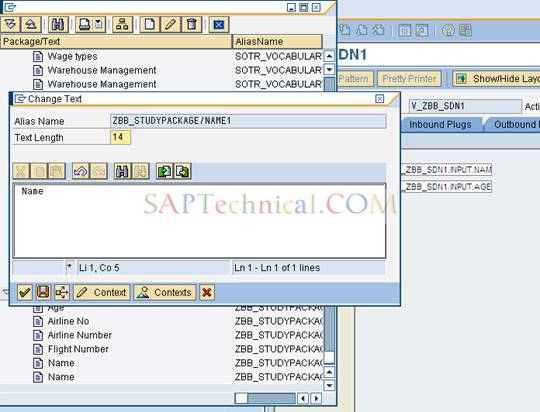
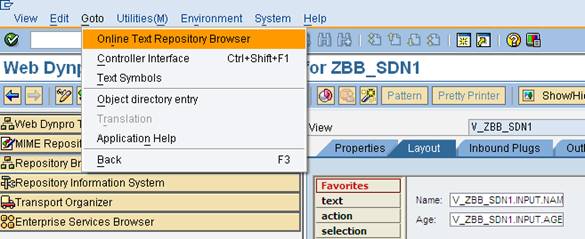
Ø  Create OTR Text from WebDynpro ABAP View Layout following the menu path Gotoà Online Text Repository Browser.
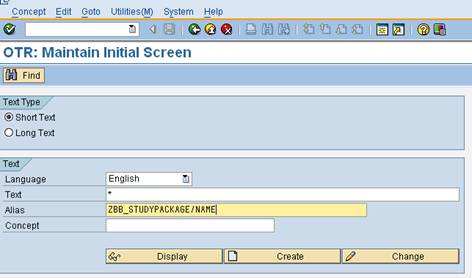
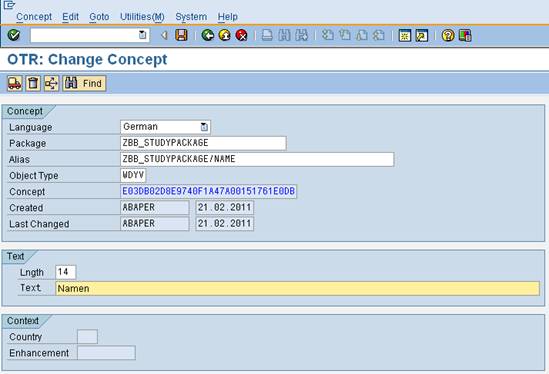
Ø  W e can also create OTR Texts using the Transaction Code SOTR_EDIT.
Steps to use OTR Short Text as the value of a UI element Property:
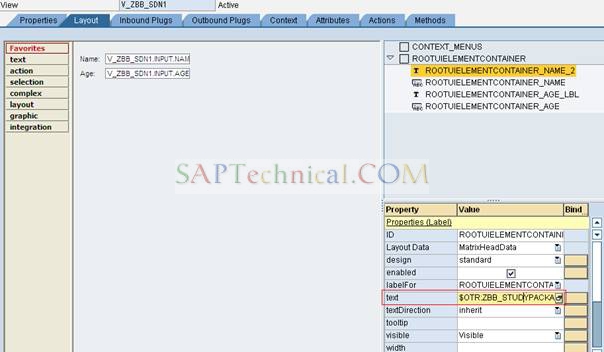
Ø  Bind the text property of Label UI element with the corresponding OTR text created for Name and Age.
Ø  To bind the OTR Text to the label UI element, press the value help button in the properties value field. The OTR browser will appear showing all texts of your package and of the SOTR_VOCABULARY_BASIC package.
Ø  Select the text from the list and choose enter.
Ø  The OTR directive for using this text will be automatically entered in the Properties value field.
OTR Directive: $OTR:<package>/<alias>.
Steps to translate the OTR Texts:
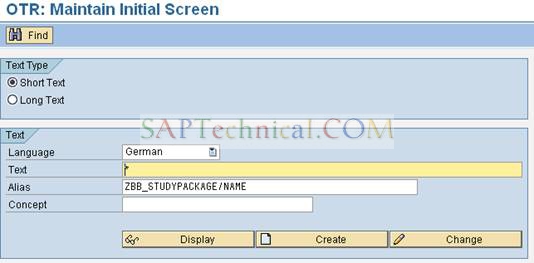
Ø  Transaction Code: SOTR_EDIT
Ø  Select the Language in which the OTR text was created.
Ø  Enter the Alias Name and click “Display” button

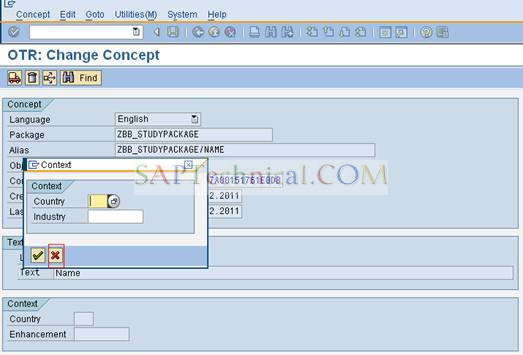
Ø  Choose the menu Edit -> Context -> Change
Ø  Click the “Close” button in the pop up window without inputting Country or Industry.
Ø  Select the Language in which you need to translate in the Language dropdown.
Ø  In the Text input field overwrite the text in your target language.
Ø  Click “Save” button.
Ø  Now Text in both the languages English and German will be maintained with the same Alias Name.
Output:
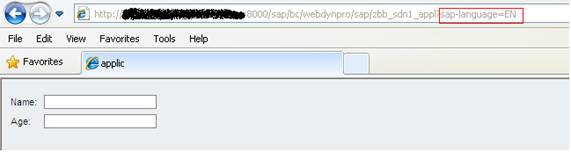
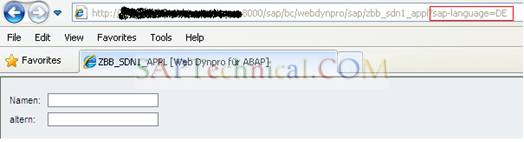
If SAP-language in URL is EN then text in English will be displayed, if sap-language is DE then text in German will be displayed.
English
German

Thursday, September 29, 2016

View: Inbound and Outbound Plugs

Each view has a number of inbound and outbound plugs. These plugs are required so it is possible to navigate between two views.
Inbound Plugs
On the Inbound Plugs tab page you can create a number of inbound plugs for the view that is currently being edited. Enter a new name for this plug and add a description of it. Unlike outbound plugs, inbound plugs can be equipped with an event handler. This event handler of an inbound plug is always called if the view is controlled using this plug.
Outbound Plugs
Parallel to inbound plugs, a view can have outbound plugs. From these plugs it is possible to navigate from a view to the next one. You can specify importing parameters for an outbound plug. These parameters are passed to the outbound plug when method wd_ThisFire_Plugname_Plg is called.

Plugs and Navigation Links
Navigation between different views is enabled by plugs. While inbound plugs define the possible starting points of a view, the outbound plugs of a view can be used to call a subsequent view. Plugs are part of the controller of a view. They are always assigned to exactly one view.
Several views are generally embedded in a Web Dynpro window. Therefore, it is necessary to qualify one view that is displayed first of all when a window is called. This view is assigned the Default property. The subsequent navigation structure is then created using this view.
The entering of a view using an inbound plug always causes an event handler method to be called. This is why an event handler method (whose use is optional) is automatically generated for every inbound plug. In this case, the inbound plug itself represents the event to be handled.
To navigate from one view to another, each outbound plug from the first view must be linked with an inbound plug of the second view with the help of a navigation link in Window.
  • Exactly one navigation link can originate from one outbound plug, although this can lead to a series of target views.
  • In contrast, an inbound plug can be controlled by several outbound plugs.
This graphic is explained in the accompanying text.

Wednesday, August 31, 2016

Controller Attributes

You can define local attributes for every type of controller. Like the private instance attributes of a class, these can be used locally in all methods of the view or the controller. These attributes can also have the characteristic “Public” and in this way are known beyond the limits of their own controllers within the surrounding component.
4
Public
Use this checkbox to decide whether the attribute’s visibility remains restricted to the corresponding controller (default setting), or whether the attribute is visible and can be used within the entire surrounding component.
Reference Type
All types that are entered in the Dictionary are permitted as reference types for an attribute, as are all data types that are created. Furthermore, references to classes and interfaces can also be used as reference types. In this case you have to select the field belonging to the attribute in the RefTo column.
Two attributes are automatically created when a controller is created:
WD_CONTEXT
WD_CONTEXT always has the reference type IF_WD_CONTEXT_NODE and is a reference to the local controller context.
WD_THIS
This attribute is a self-reference to the local interface of the corresponding controller. Since each controller has a unique local interface, every WD_THIS attribute also has a unique reference type.

Wednesday, August 24, 2016

Context

Context
The data used in the component or in the view is stored in the context. Read-write access to this data is available using the controllers as a starting point.
Structure
The data from the contexts is managed in a hierarchical structure. Each context has a root node, underneath which the individual data fields (attributes) are stored in a tree structure. You create this tree structure according to the structure of your application.
This graphic is explained in the accompanying text.
Each context node contains data fields that can display the following:
  • An individual instance of an object type
  • A table of instances.
When a node is created in the context of a Web Dynpro component, the cardinality of the node is specified. The cardinality defines how often a node is to be instantiated at runtime, that is, how many elements of this node are available at runtime. The following table summarizes the possible cardinalities for a node:
Cardinality
Meaning
1:1
Only one element is instantiated.
0:1
The node contains only one element instance, which must not be instantiated.
1:n
n elements can be instantiated, but at least one element must be instantiated.
0:n
The number of instantiated elements of the context node can vary.
Example of Cardinality
The context node Vehicle is used to describe the fleet of a car rental company. It has the cardinality 1…n and is filled from a database table. A number of attributes of this node have a specific value for each vehicle.
This graphic is explained in the accompanying text.
The database table indicates that the company owns three vehicles, each with unique registration dates and unique license plate numbers. Thus, to display this table in the Web Dynpro application, 3 elements of the context nodeVehicle must be instantiated; the cardinality of the node must therefore be 0…n or 1…n. (If the Vehicle node is to be filled with values in the context of another function, for example, from a table of all currently available cars, cardinality 0…n should be used since this table could very easily be empty, that is, if all cars are rented out.)
At runtime, the Vehicle context node should contain three elements and appear as follows:
This graphic is explained in the accompanying text.
As well as these attributes, a context node can also contain additional child nodes:
This graphic is explained in the accompanying text.
For each customer of a car rental company, the two attributes rented from and rented till are listed in the context. At runtime, the context then contains the additional relevant values:
This graphic is explained in the accompanying text.
Recursion Nodes
Dynamic node nesting is possible within a context, creating what is called a recursion node. The node that is used for recursion is always a predecessor of the new node. The newly created recursion node is a reference to a predecessor node and therefore cannot be processed separately. Instead it takes on the structure of the node to be repeated.
This graphic is explained in the accompanying text.


Context Mapping

Use
Web Dynpro controllers are independent programs that never normally share information with each other. To achieve access to the context of another controller, that controller must be declared as Required Controller .
Note
Remember the guiding principles of Model View Controller (MVC) design. Only non-visual controllers can serve as data generators. View controllers can only serve as data consumers.
Information held in the context of a non-visual controller can be made accessible to the context of another controller (view or non-visual) by a technique known as context mapping. Using this technique, two or more controllers can access the same runtime data.
When a mapping relationship is declared the context node acting as the consumer of data is known as the Mapped Node , and the context node acting as the data source is known as the Mapping Origin .
Note
A mapped node can only refer to a single mapping origin node; however, a node acting as a mapping origin can be referred to by many mapped nodes.
Mapping Mechanism
Before a mapping relationship can be established, the following two criteria must be met:
  • There must be a suitable node available to act as a mapping origin
  • A context node must exist in the consuming controller
All context nodes are runtime objects that contain, amongst other things, a collection. When a mapping relationship is declared, the node collection of the mapped node is replaced by a reference to the node collection in the mapping origin node. In this manner, context mapping never causes data to be duplicated. There is only one copy of the data, and it lives in the collection belonging to the mapping origin node.
Now, when the coding in a view controller accesses the data in a mapped node, it has full read/write access to the data in the mapping origin node, as if it were accessing a node in its own local context.
Note
It is perfectly permissible to create a context node that contains a mixture of mapped and unmapped attributes. In fact, this is a good design because even though data appears to belong to a single node, the attributes that hold the business data are mapped (i.e., they function as consumers of data from a non-visual controller), and the attributes holding data only concerned with the display of the business data are not mapped.

Different Controllers of Web Dynpro Component

In Web dynpro component, there are 6 types of controllers:

  1. Component controller
  2. View controller
  3. Custom controller
  4. Configuration controller
  5. Interface controller
  6. Window controller
1. Component Controller
Each Web Dynpro component contains exactly one component controller. This controller is automatically created during the component creation and contains a context, events, and methods. Unlike a view controller, the component controller is visible for all views in a component. This means, the controllers of different component views can access context elements or methods of the component controller. For this purpose, the component controller usage is automatically created for every view controller.
This graphic is explained in the accompanying text
This makes the component controller a central location for data exchange between different views of one component. The Web Dynpro framework provides the mechanism of context mapping which is a declarative tool to easily perform this data exchange.
In addition, the component controller allows Cross-View Method Calls For example, it might be useful to add the call of a function module to a method of the component controller if the function module is to be used by methods of different views. You can then access the methods of the component controller in the controllers of the various views. This enables you to structure Web Dynpro components in a better way and to reuse frequently used program steps.

Context Mapping
Data stored in the context of the component controller can be used within a view if you link the node of the view context to the corresponding context node of the component controller. This procedure is called “defining a mapping”. For further information, refer to the chapter Data Binding and Mapping in the architecture manual for Web Dynpro.
The following graphic illustrates the principle of the procedure: 
This graphic is explained in the accompanying text
The context of View 1 of the example in the graphic contains two nodes below the root node:
  The node Node 1 is mapped to the node of component controller context of the same name. This means that the structure within the node matches the structure within the node of the component controller or the structure is contained in it. At any time, the values of all attributes contained in Node 1 are identical to the corresponding attributes of the component controller. If the attribute value of the view context changes at run-time, - for example, due to a user input - , the change is directly passed to the component controller.

  The node Local Node View 1, however, is exclusively known within the view controller, and only the methods of the View 1 have access to the values of the node attributes.

2. View Controllers
Layout and flow logic are very closely connected to each other in a view. As part of a view, the view controller – unlike other controllers – is therefore not edited in the Controller Editor. Instead, the necessary tools have been integrated into theView Editor, which can be used to edit the view as a whole.
Just like the component controller, the view controller contains data and functions. Furthermore, the view controller also has aIF_<Controllername> interface, which means that these data and functions are visible within the same view only.
The lifetime of the controller element of a view is restricted to the lifetime of the view. To create simple Web Dynpro applications, it is sufficient if you maintain the component controller and the view controller of a view. The two controllers described below are optional and help you to structure complicated components and applications, thereby increasing their reusability.

3. Custom Controller
A custom controller is a special type of controller of a WD application, which you create explicitly if required. Like all other controller types, the custom controller contains a context class, which is automatically generated when you define the custom controller. The custom controller is also the responsible part of the WD application that implements the event handlers and validators that react to actions. 
The properties and use of the custom controller that can be added optionally correspond exactly to those of the component controller. This means that it is visible to all elements of the component and the lifetime of the elements is the lifetime of the component. The custom controller gives you the option of structuring functions and data within a component. It makes sense to create and maintain a custom controller if a certain subset of views of a component should be equipped with a special function or with a special set of data.
        It is recommended to go with an example of custom controller:
        http://saptechnical.com/Tutorials/WebDynproABAP/Controller/Index.htm

4. Configuration Controller

Configuration controller in turns a custom controller.
What is the use of Configuration controller?
It is necessary if the corresponding component implements special configuration and personalization.
Eg: Setting the visibility of a view element dynamically for different users
Instead of writing code to set visibility we can maintain the visibility in configuration. Each user group can have their own visibility settings through configuration.
All attributes that should be accessible via configuration have to be defined in the context of the configuration controller.
Limitations of Configuration controller:
– Only one configuration controller may exist in any component.
– Any controller can access the configuration controller, but configuration controller cannot access any other controller.
– Life time of this controller is as long as the component lives.
Creation of configuration controller:
Step1: Create a WD component
1.JPG
Step2: Create a Custom controller by right clicking on component
2.JPG
Step3: Now you can see the extra folder in component hierarchy for custom controller.
3.JPG
Step4: Change the custom controller to configuration controller by right clicking on the custom controller
4.JPG
Step5: Now you can see that, name has been changed to configuration controller.
          Like component controller, we can create context attributes in custom controller.
          Nodes which we created in configuration controller will be available during configuration.
          Now create a node for visibility with type WDY_BOOLEAN.
5.JPG
Step6: Create a context node in view controller and place the UI elements in the view
6.JPG
61.JPG
Step7: Unlike component controller, configuration controller context will not be available to view controller. To make it available, create component usage in view              controller properties.
7.JPG
Step8: Map the context from configuration controller to view controller.
8.JPG
Step9: We want to set the visibility through configuration to material number UI element.
          So bind the visibility of material number with visibility node.
9.JPG
Step10: Create WD application
             Right click on application and click on create/change configuration
10.JPG
Step11: One browser window will open to create application configuration.
            Enter the configuration name and click on create
11.JPG
Step12: Enter the package name and click on OK
12.JPG
Step13: We have created now application configuration, Next screen prompt you to create Component configuration.
             Enter the configuration name and hit enter. After hitting enter  ‘Go to Component Configuration’ button will be enabled.
13.JPG
– Step14: Click on ‘Go to Component Configuration’ button
14.JPG
– Step15:In the next screen enter the configuration name and click on create and save it into one package
15.JPG
Step16:  Node attributes which we created in Configuration controller will be available in Component configuration.
16.JPG
Step17:  Now check the visibility check box to make the input field visible and Click on Save
17.JPG
Step18: Before testing the configuration make sure that, all configurations (Both application and component configurations) has been saved.
            Now expand the application, there you can see the application configuration which we have created.
            Assign the application name to the application parameter WDCONFIGURATIONID
untitled.JPG
Step 19: Test the application
181.JPG
Step 20: Now change the configuration to make the material number UI element invisible.
            Double click on configuration. Click on start configurator.
19.JPG
Step 21: Click on Change
20.JPG
Step22:Click on the button ‘Go to Component configuration’.
           Uncheck the visibility attribute and click on Save.
21.JPG
Step 23: Test the Application.
22.JPG

Conclusion: Each application can have N number of configurations. So each user group can set their visibility according to their requirement without touching the code.


References:

http://help.sap.com/saphelp_nw70/helpdata/EN/b9/b82c4142aef623e10000000a155106/content.htm
1
SAP giới thiệu mã hỗ trợ AI trong ngôn ngữ ABAP riêng của mình

SAP đã ra mắt một loạt tính năng mã hỗ trợ AI trong môi trường phát triển ứng dụng dựa trên đám mây của mình, đồng thời tham gia vào danh sá...